In this article:
Link types and statistics
There are a few type of links you can decide to insert in your email. In the application, we offer the major three: URL, anchors and e-mails (mailto).
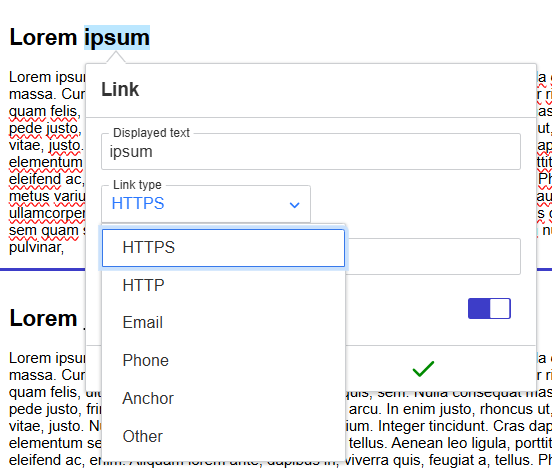
- URL: Create a link to a website, to open a file (ex.: PDF file) or to make a phone call. To use this link type, enter the web address leading to your website in the URL field.
Learn more about linking to a file >
- Link to anchor in the text: Create links toward different sections of your email. It's often used to build a table of contents.
Learn more about anchors >
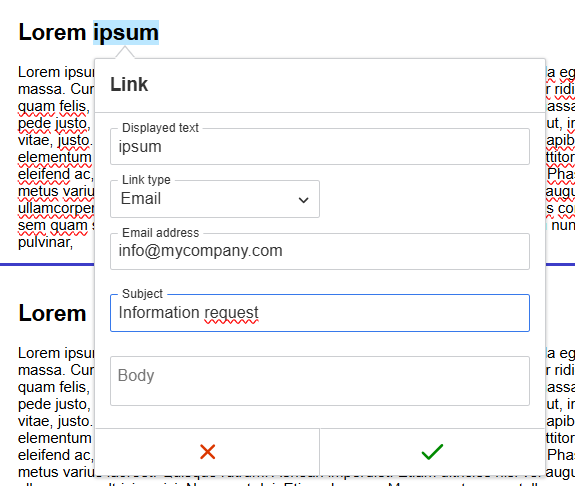
- E-mail (also known as mailto): Add a link to an e-mail address. To use this link type, you will need to fill in the different fields regarding the address your link will point to and if needed the subject of your e-mail. You could also add informations regarding the content of your e-mail. Pay attention to special caracters: they are not always supported!
Learn more about email address links > - Phone: allows you to create a link that automatically dials a phone number when clicked. To use this type of link, select URL from the Link Type dropdown menu and enter the information in the URL field.
Link statistics
While all of the types listed above are supported in e-mails, we can only track statistics on URL type of links.
Learn more about how to properly test your links >
How to add a link on text
- Click where you would like to add your text.
- Write down the sentence or words on which you would like to put your link.
- Highlight the sentence or word on which you would like to add your link.
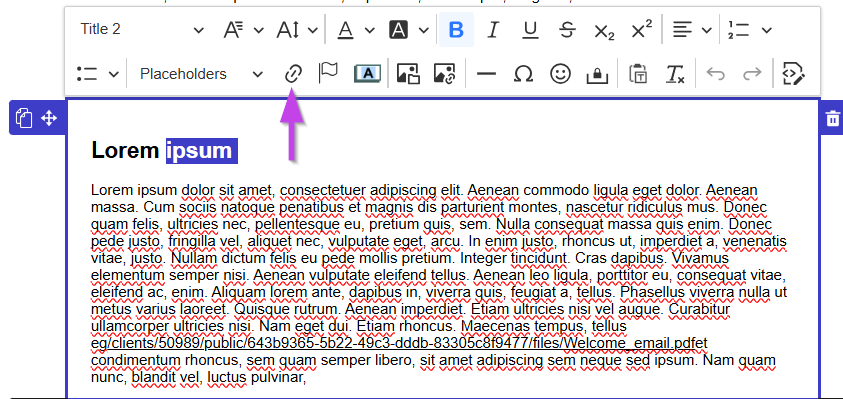
- Select the Link button in the toolbar (the little chain icon). The link properties window will open.
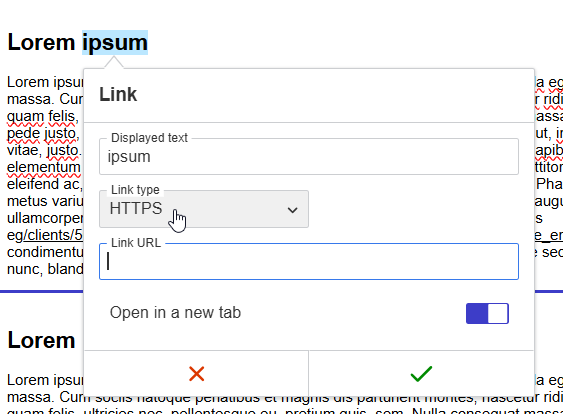
Learn how to set the target of your link > - Make sure that the link type chosen is set to HTTPS. If this is not the case, click on the word below Link type and choose HTTPS in the drop down menu.
- In the URL field, enter the web address then select the green checkmark to save your changes.
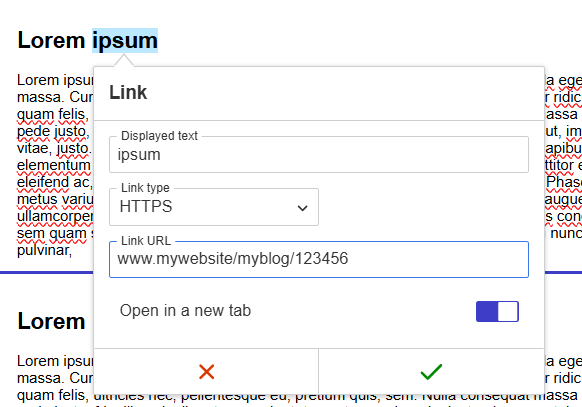
- Always test your links before sending out your email!
Learn the different ways to test your email >
Open a link in a new tab
You can choose whether a link opens in a new browser tab or in the tab where your reader is already viewing your email.
Toggle on: the link opens in a new tab. Your reader keeps your email open while viewing the page.
Toggle off: the link opens in the same tab.
To change this setting:
Select the text or button containing your link.
Click the Link button, shown as a chain icon in the toolbar. The Link window will open.
Turn the Open in a new tab toggle on or off.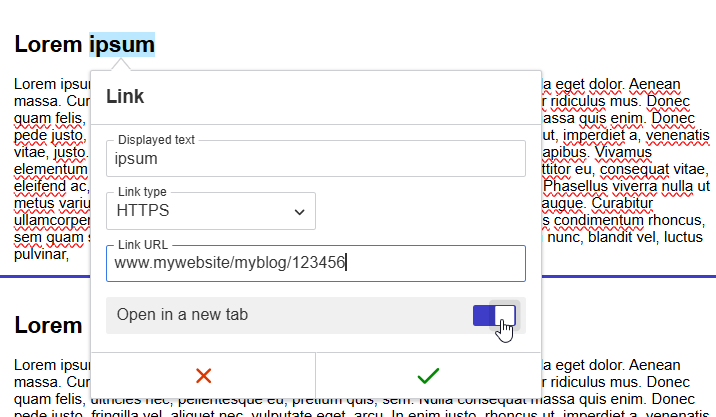
How to change hyperlink styles
How to change link font and size
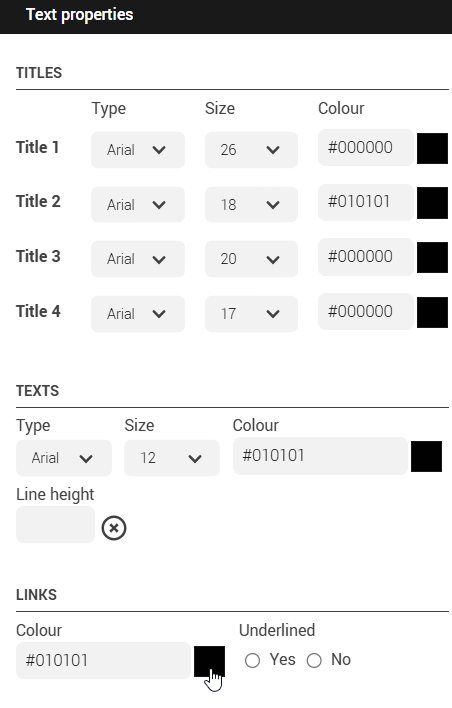
Depending on where they are, the font and the size of your links are the same as those chosen by default for your texts or titles. To change the default choices of these elements in your text block:
- Make sure your text block is selected (to select it, click on it one time) and open its Text properties in the side panel at the right of your template.
- Then, change the font and size of the Texts or Titles depending wether your links are in a paragraph or title.
.png)
If you rather wish to select a font and size for your links that is different than your default choices, follow these steps:
- Select your hyperlink text.
- In the tools above the text block, change the font and/or the size in the drop-down list. You can also add formatting options such as bold.

How to change the link color
- Make sure your text block is selected (to select it, click on it one time) and open its Text properties in the side panel at the right of your template.
- In the Links section, click the square to pick a color or enter directly the hexadecimal code of the desired color.
.png)
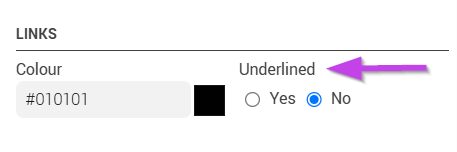
Here's how to remove link underline
- Click the block where your link is.
- Go to Block properties > Text properties > Links.
- Check No under the Underlined option.
How to add a link on an image
Learn how to add a link on an image if it is:
If your image is in an image block:
- Click on the image block in which you wish to add your link.
- In the side panel at your right, go in the Image properties section.
.png)
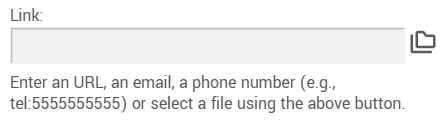
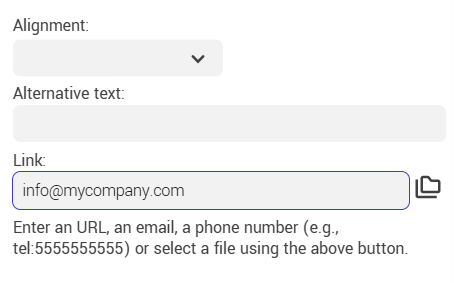
- Enter the web address in the Link field.
- Don't forget to test your link!
Learn the different ways to test your email >
If your image is in a text block or if you have created your own HTML email:
- Click on the image on which you would like to add your link in your text zone to select it.
- Click on the Link button represented by the chain icon in your toolbar. The link properties window will open.
- Make sure that the link type chosen is set to HTTPS. If this is not the case, click on the word below Link type and choose HTTPS in the drop-down menu.
- In the URL field, enter the web address then select the green checkmark to save your changes.
- Don't forget to test your links before your mailing!
Learn the different ways to test your email >
How to add a phone hyperlink
It is possible to add a link that will trigger an action to dial a phone number. Here's how to do it:
- Follow steps 1 to 4 in the How to add a link to text section.
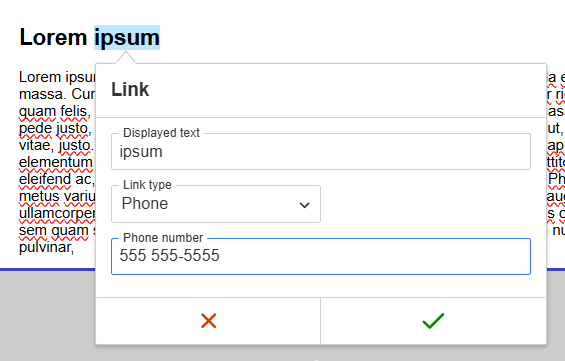
- Change the link protocol to Phone.
- Enter your phone number in the Phone number field as shown in the example below:
- Don't forget to test your links before your mailing!
Learn the different ways to test your email >
How to edit a link on a text or button
- Double-click on the link or the button you wish to edit. The link properties window will open.
- Make the desired changes. If you don't see the URL field, change the link type to URL.
- Select the green checkmark to save your changes.
How to delete a link
To delete a link, simply highlight the sentence, word or button on which your link has been associated, then select the button displaying the link icon with the small x.
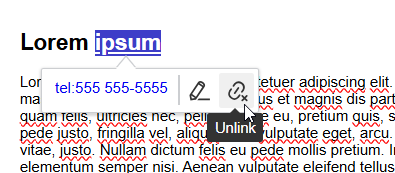
This will allow you to simply remove the link without erasing your sentence, word or button.